Dejar un mensaje
Si le interesan nuestros productos y desea obtener más información, deje un mensaje aquí y le responderemos lo antes posible.

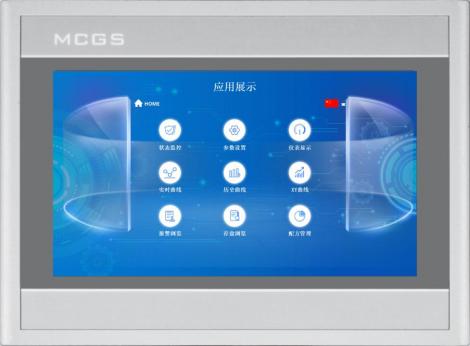
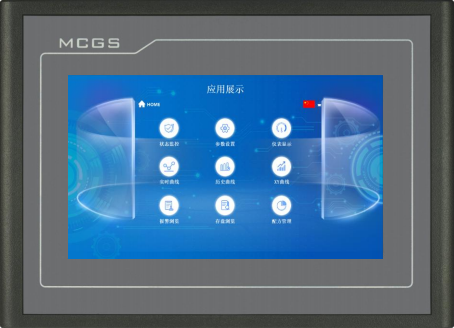
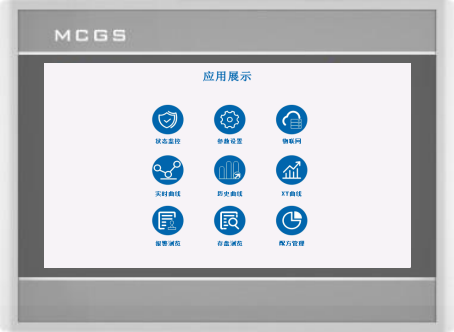
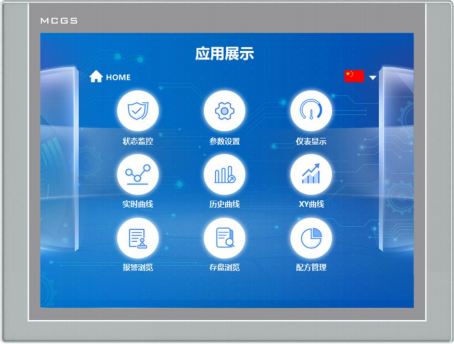
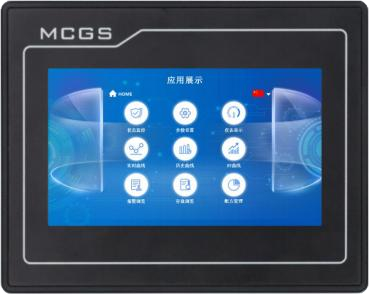
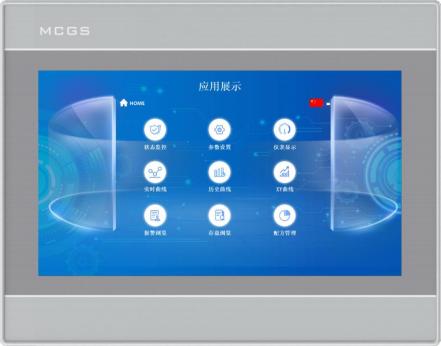
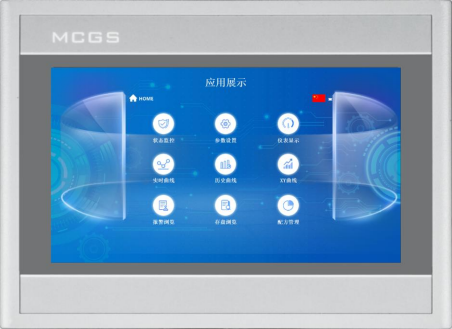
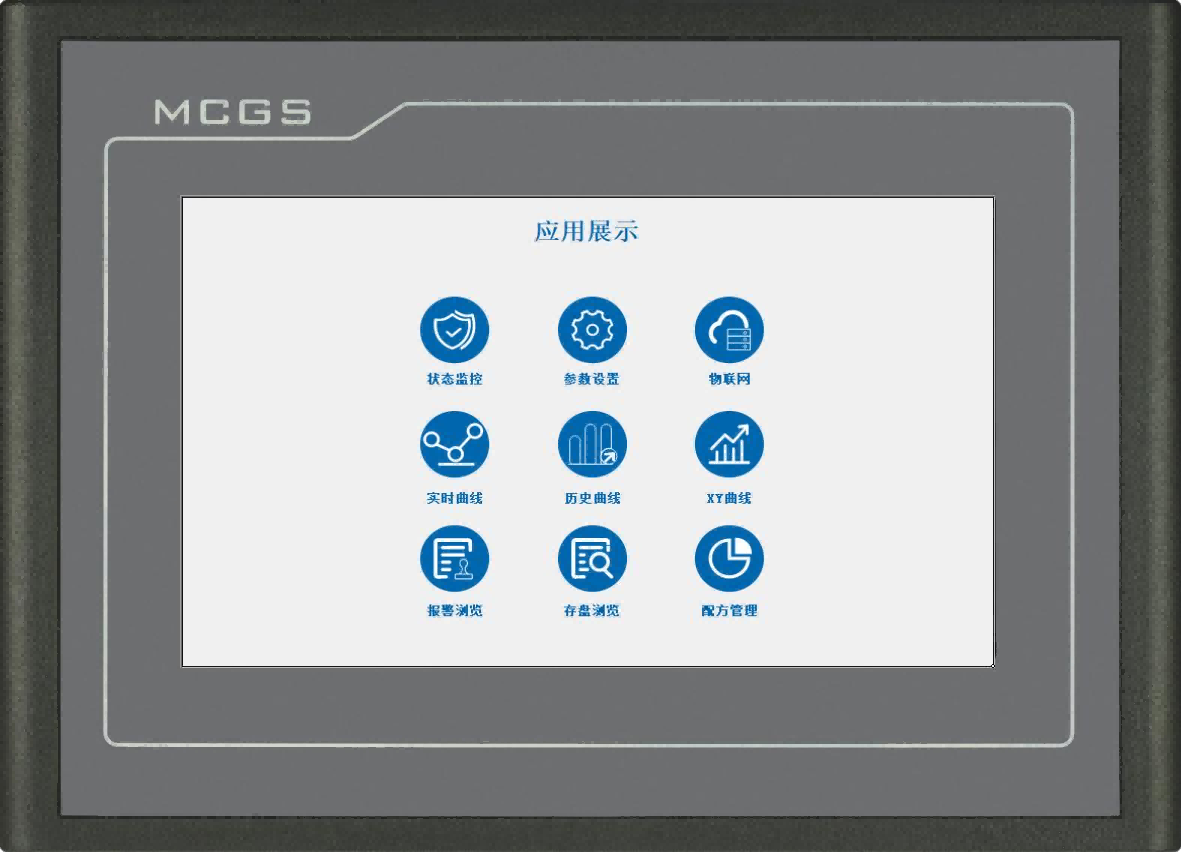
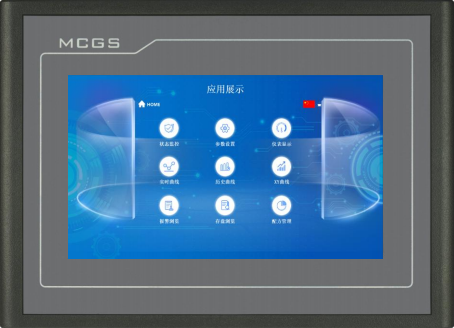
Lanzada oficialmente por Kunlun Tech, la serie G de TPC pertenece a la gama alta de pantallas táctiles inteligentes, que pueden satisfacer perfectamente las múltiples necesidades de aplicación de los usuarios.
Número de artículo :
TPC7072GnPedido (cantidad mínima de pedido) :
50Pago :
Paypal\TT\Western UnionOrigen del producto :
Guangdong, ChinaPeso :
1KGCon tecnología de vanguardia y un rendimiento líder en la industria, la pantalla táctil de la serie G está fabricada con materiales de primera calidad y una fiabilidad excepcional. Presenta un diseño exterior sofisticado y elegante, con una estructura delgada y portátil que facilita su montaje y una organización impecable. Disponible con 256 MB o 1 GB de RAM y 8 GB de memoria interna, garantiza un funcionamiento fluido y suficiente espacio para el almacenamiento de datos. Además, permite una personalización completa, lo que permite a los usuarios ajustar libremente las funciones y la configuración para satisfacer las diversas necesidades operativas en diferentes entornos industriales.
Especificaciones del producto
| Clasificación | Artículo | TPC7072Gn |
| Características del producto | Pantalla de cristal líquido | Pantalla TFT de 7" |
| Tipo de retroiluminación | CONDUJO | |
| Color de la pantalla | 262K | |
| Resolución de píxeles | 800×480 | |
| Brillo de la pantalla | 300 cd/㎡ | |
| Tipo de pantalla táctil | Resistivo de cuatro hilos | |
| Voltaje de entrada | 24±20% V CC | |
| Aislamiento de energía | Incorporado | |
| Potencia nominal | 5W | |
| Procesador | Procesador Cortex-A53 de cuatro núcleos a 1 GHz | |
| RAM | 512 MB | |
| Almacenamiento del sistema | 8 GB | |
| Almacenamiento extendido | 8 GB | |
| Reloj de hardware | Incorporado | |
| Software de configuración | McgsPro 3.3.6.6354 SP1.3 Versiones 1 y 2 | |
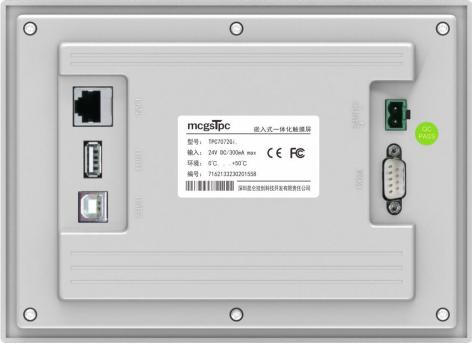
| Interfaz externa | Interfaz serie | Método 1: COM1(232) COM2(485) COM3(485) COM4(232) Método 2: COM1(232) COM4(232) COM9(422) |
| Interfaz USB | 1×Host | |
| Puerto Ethernet | 2 × 10/100M Adaptativo | |
| Condiciones ambientales | Temperatura de funcionamiento | 0℃~50℃ |
| Humedad de funcionamiento | 5%~90% (sin condensación) | |
| Temperatura de almacenamiento | -10℃~60℃ | |
| Humedad de almacenamiento | 5%~90% (sin condensación) | |
| Especificaciones del producto | Material de revestimiento | Plásticos de ingeniería |
| Color de la carcasa | Plata | |
| Dimensiones externas | 203 mm × 149 mm | |
| Tamaño de apertura del estante | 192 mm × 138 mm | |
| Tamaño del área de visualización | 155 mm × 88 mm | |
| Certificación y cumplimiento | Certificación de producto | Cumple con las normas de certificación CE/FCC. |
| Nivel de protección | IP65 (Panel frontal) | |
| Compatibilidad electromagnética (CEM) | Nivel industrial 3 |
Descripción de la interfaz
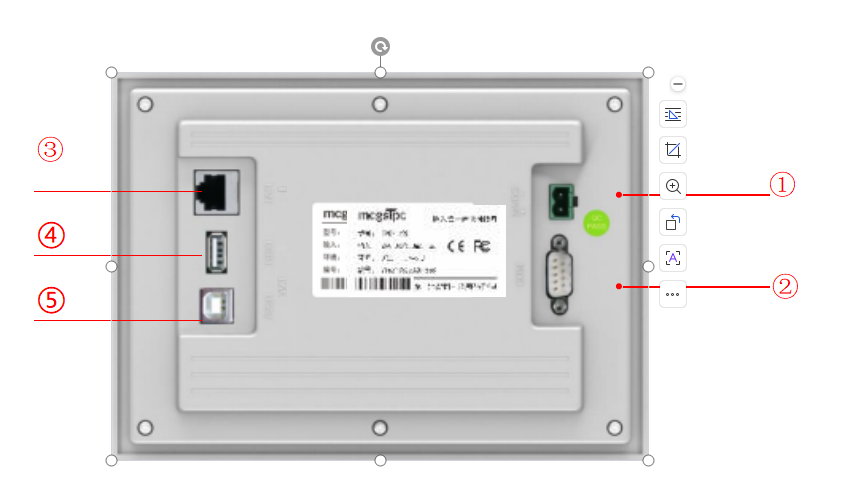
① | Fuente de electricidad |
|
| - | 1 | 0V |
+ | 2 | 24 V CC | ||||
② |
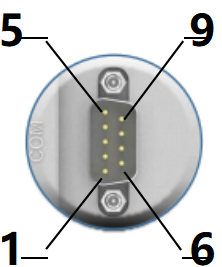
Puerto serie |
|
COM1 | 2 | RS232 RXD | |
3 | Transmisión RS232 | |||||
5 | GND | |||||
COM2 | 7 | RS485+ | ||||
8 | RS485- | |||||
COM3 | 4 | RS485+ | ||||
9 | RS485- | |||||
COM4 | 1 | RS232 RXD | ||||
6 | Transmisión RS232 | |||||
5 | GND | |||||
COM9 | 7 | RXD+ | ||||
8 | RXD- | |||||
4 | TXD+ | |||||
9 | TXD- | |||||
Nota: com9 no se puede usar simultáneamente con com2 o com3. | ||||||
③ | Boca de red | Un puerto Ethernet adaptativo de 10M/100M permite cargar o descargar proyectos, actualizar el entorno operativo (el entorno operativo de la pantalla debe ser Pro 3.3.2 o superior) y comunicarse con otros dispositivos. | ||||
④ | ||||||
④ | Puerto principal USB | USB 2.0 permite actualizar el entorno operativo de la pantalla táctil, los proyectos y el sistema a través de una unidad flash USB, así como importar y exportar datos. | ||||
Introducción del producto
Dimensiones del producto
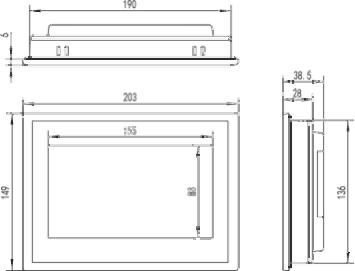
Dimensiones externas
Método de instalación
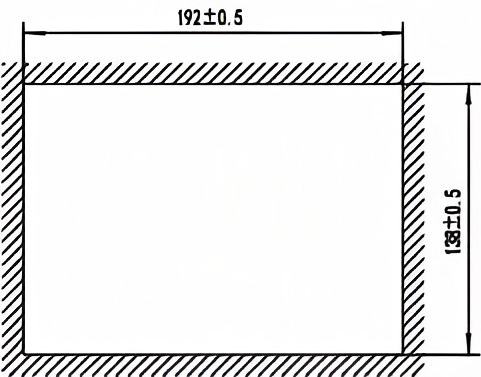
Tamaño de apertura
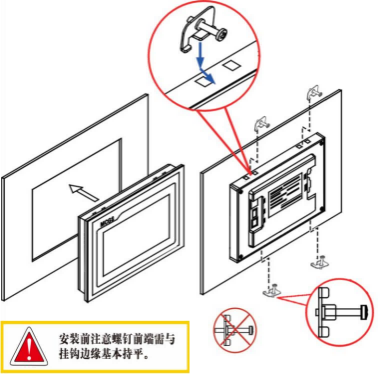
Instalación de ganchos
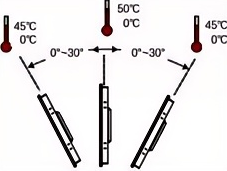
Ángulo de instalación
Mantenimiento del producto
1.5.1 Batería de repuesto
Ubicación de la batería: TPC En la placa de circuito impreso dentro del producto.
Especificaciones de la batería: baterías de litio CR2032 de 3 V
Durante la instalación, tenga cuidado de no provocar un cortocircuito entre los terminales positivo y negativo de la batería.
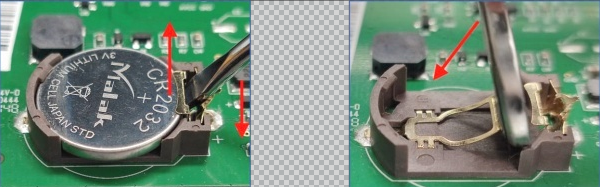
Retire la batería Instale la batería
1.5.2 Calibración táctil
Ingrese TPC En la interfaz de configuración del sistema, mantenga presionado un área en blanco. 3 El proceso de calibración táctil comenzará en segundos.
Calibración TPC: Use un lápiz óptico o un dedo para presionar suavemente el punto central del cursor en forma de cruz. Cuando el cursor se mueva al siguiente punto, levántelo. Repita esta acción hasta que aparezca el mensaje "Se han medido los nuevos ajustes de calibración". Haga clic en el botón "Confirmar calibración" para guardar y salir del programa de calibración.
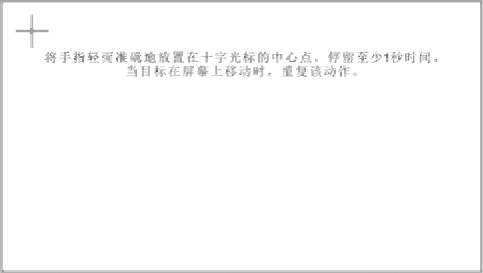
Coloca el dedo suave y precisamente en el centro del cursor en forma de cruz y manténlo presionado durante al menos un segundo mientras el objetivo se mueve por la pantalla. Repite esta acción.
1.5.3 Película a prueba de tres capas
Aplicar una película protectora a TPC puede prevenir eficazmente que el polvo, el aceite y otros contaminantes generados durante la producción afecten la piel. TPC es susceptible a la corrosión, por lo tanto, si es necesario, se puede utilizar una membrana protectora para proteger TPC. Para protegerlo. Este artículo toma... 1271Gn Usaremos esto como ejemplo para la explicación; otros modelos se discutirán más adelante. TPC Los pasos para aplicar el protector de pantalla son similares.
Herramientas necesarias: El TPC incluye una película de triple protección (disponible para su compra en proveedores de pantallas), un paño antipolvo, un agente de limpieza antiestático y ecológico, y un rodillo.
Pasos de operación:
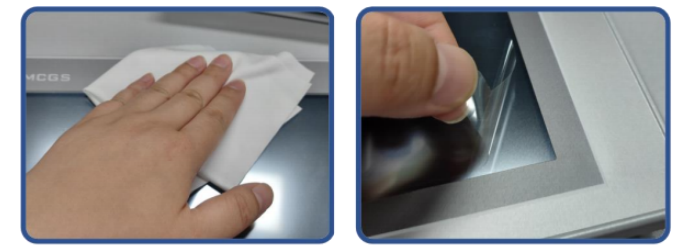
1) Limpie la pantalla. Use un paño para quitar el polvo del panel frontal y evitar burbujas al aplicar el protector de pantalla. Si la superficie TPC está muy sucia, use un limpiador para eliminar los contaminantes de las ranuras alrededor de los bordes.
2) Retire la película protectora de PET instalada de fábrica y limpie cualquier residuo para evitar la formación de burbujas durante la aplicación.
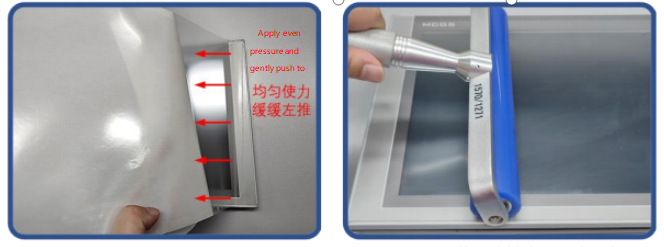
3) Despegue una esquina de la película protectora del lado derecho. Alinee el lado derecho de la película con el lado derecho del TPC. Con la mano izquierda, retire lentamente la película protectora y, con la mano derecha, aplique una presión uniforme para empujar suavemente la película sobre la pantalla de derecha a izquierda.
4) Después de aplicar la película, utilice un rodillo para presionar firmemente el reverso adhesivo y evitar la formación de burbujas de aire.
Precauciones:
1) La película protectora instalada de fábrica debe retirarse antes de aplicar la película de triple protección. Película protectora de PET
2) La película de triple capa es un consumible. Si los bordes se despegan o se abultan, es necesario aplicar una nueva película.
3) Al volver a colocar la película protectora, haga palanca desde la esquina inferior derecha del panel frontal, con cuidado de no rayar la película de sellado.
2 Descarga del proyecto
Paso 1: Utilice la fuente de alimentación de 24 V CC TPC Después de encender y arrancar, aparecerá una barra de progreso "Iniciando" en la pantalla. En este punto, haga clic en... TPC①, se le llevará a la interfaz de configuración de arranque. Si no realiza ninguna acción, se le llevará automáticamente a la interfaz de ejecución del proyecto.
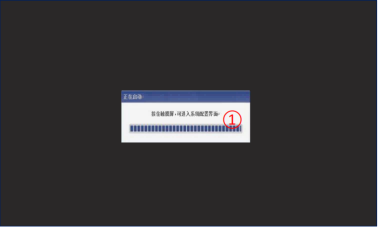
Paso 2: Haga clic en el botón Configuración de parámetros del sistema ②. Ingrese a la interfaz de configuración del sistema TPC.
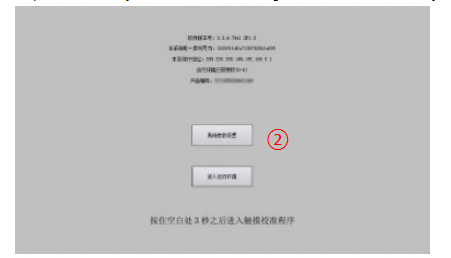
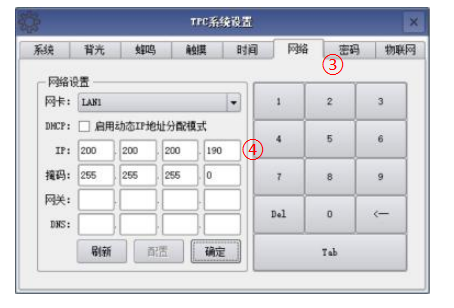
Paso 3: Seleccione la pestaña Configuración de red ③ y configure... Dirección IP de TPC 4, la dirección IP predeterminada de TPC es 200.200.200.190.
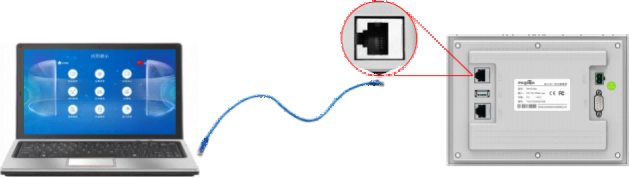
Paso 4: Conecte el ordenador y... TPC, y la IP del ordenador Con la IP del puerto LAN del TPC conectado Configúrelos en el mismo segmento de red.
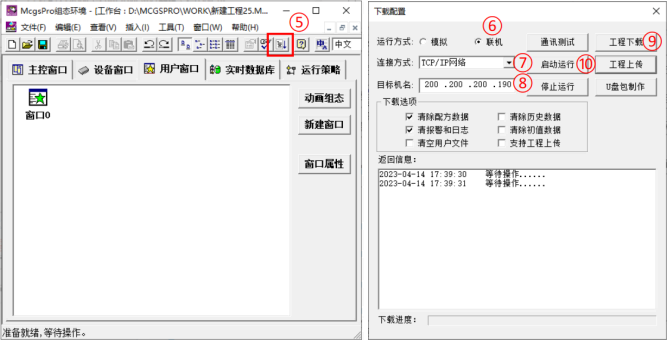
Paso 5: Use MCGS Pro Open TPC Project, haga clic para descargar el proyecto ⑤, abra la página de propiedades de configuración de descarga y seleccione "Online" como modo de ejecución. Seleccione el método de conexión "TCP/IP" "Network"⑦ Ingrese el nombre de la máquina de destino TPC de la dirección IP ⑧, haga clic en "Download Project" (⑨). Después de que la descarga sea exitosa, haga clic en "Start & Run" (⑩) o... TPC El botón "Enter Runtime Environment" en la interfaz ejecuta el proyecto del lado de la pantalla.

Dejar un mensaje
Escanea y envíalo a WeChat. :

Escanea y envíalo a WhatsApp. :